

For your first transfer, try it on the same Wi-Fi; on different networks, a pairing code works too.
ANYXFS / Help
Your first transfer starts here.
How it works
On the same Wi-Fi, pick the other device directly; on different networks, use a pairing code. Open a flow and follow the pictures step by step.
Phone → computer · same network
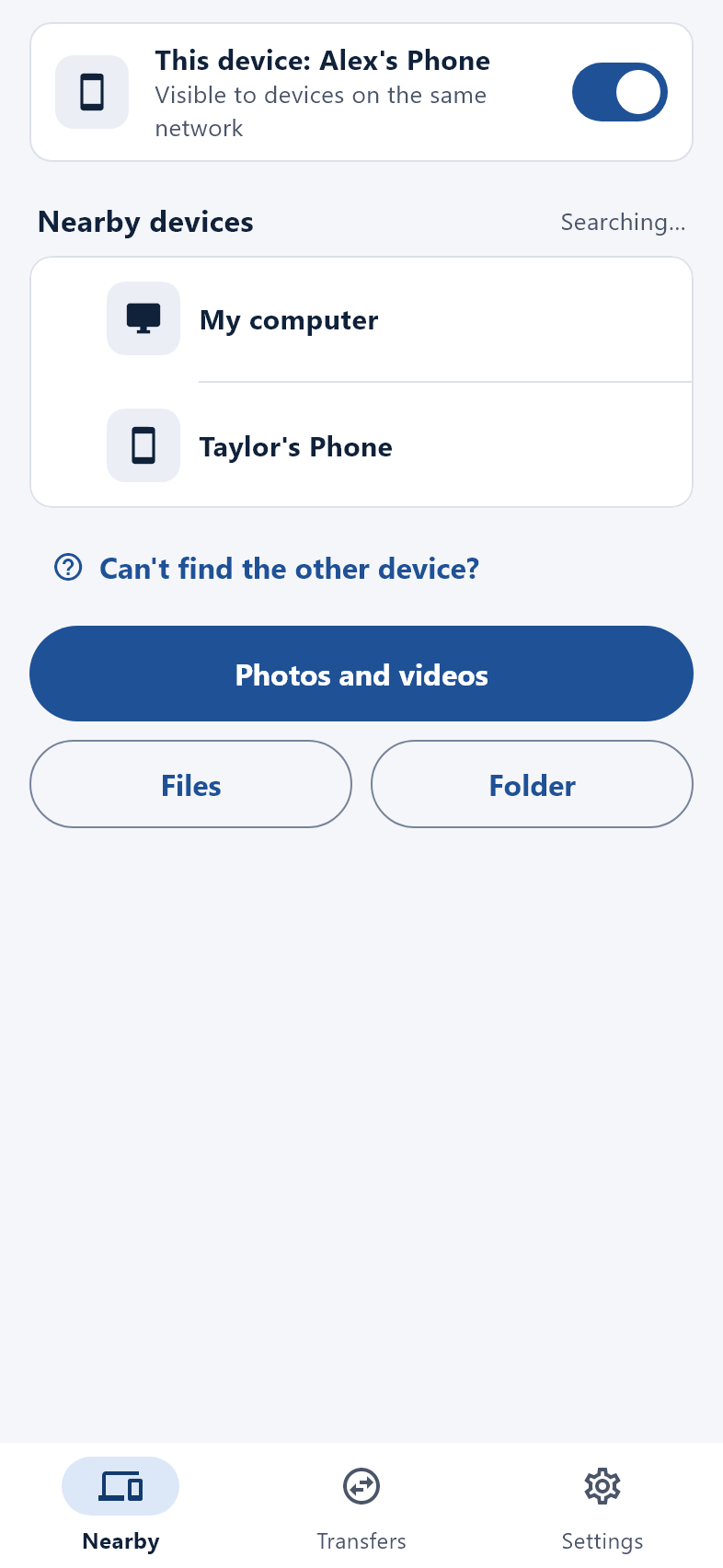
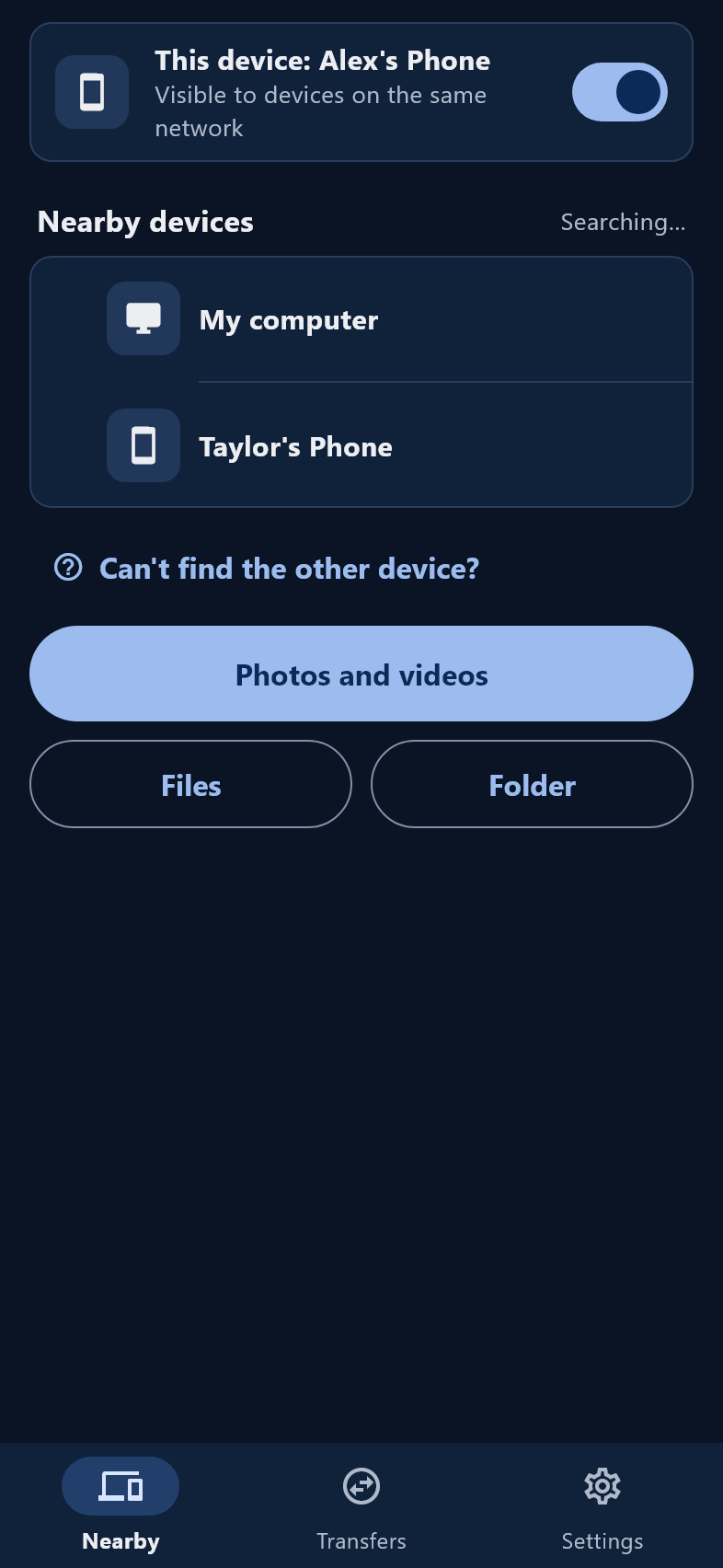
1Connect the phone and the computer to the same Wi-Fi and open AnyXFS on both. Under “Nearby” on the phone, tap your computer. 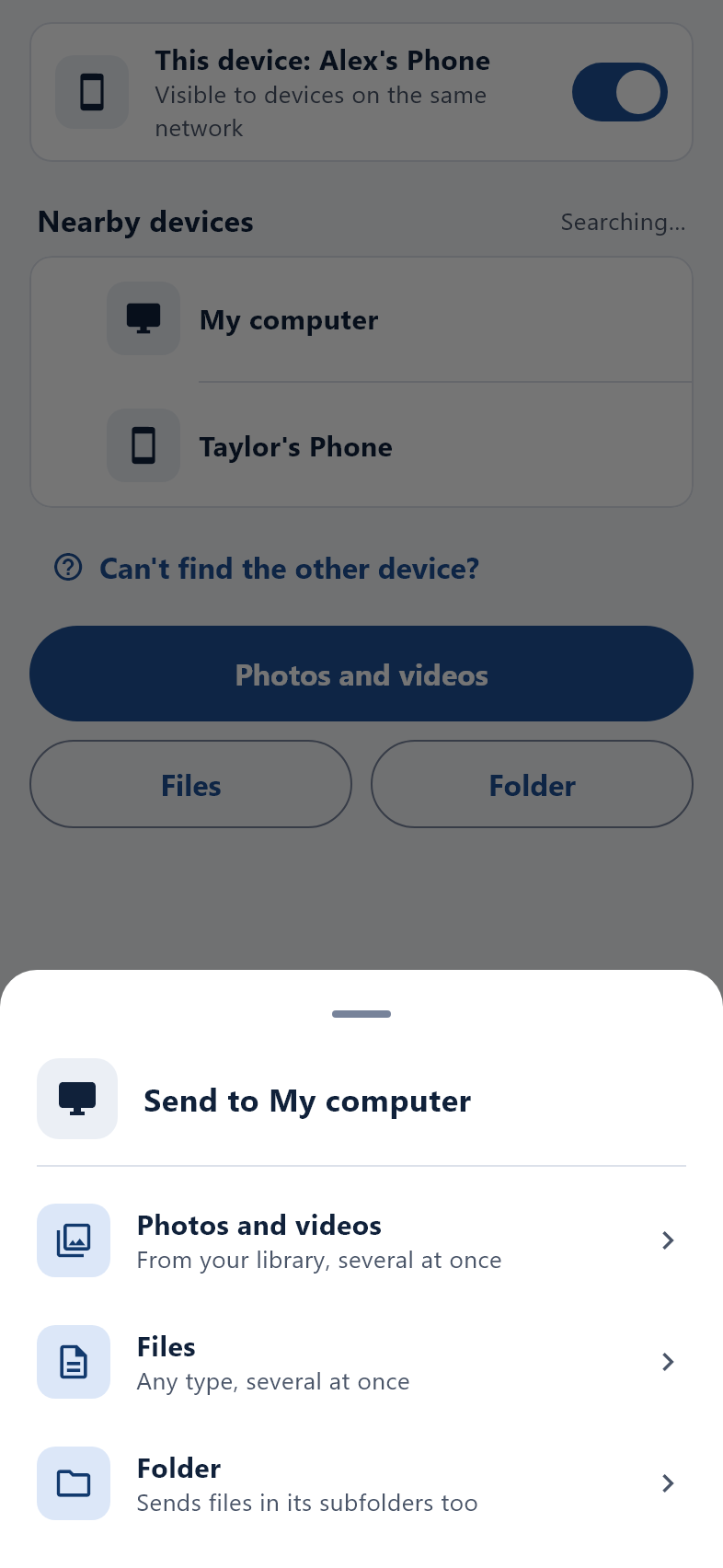
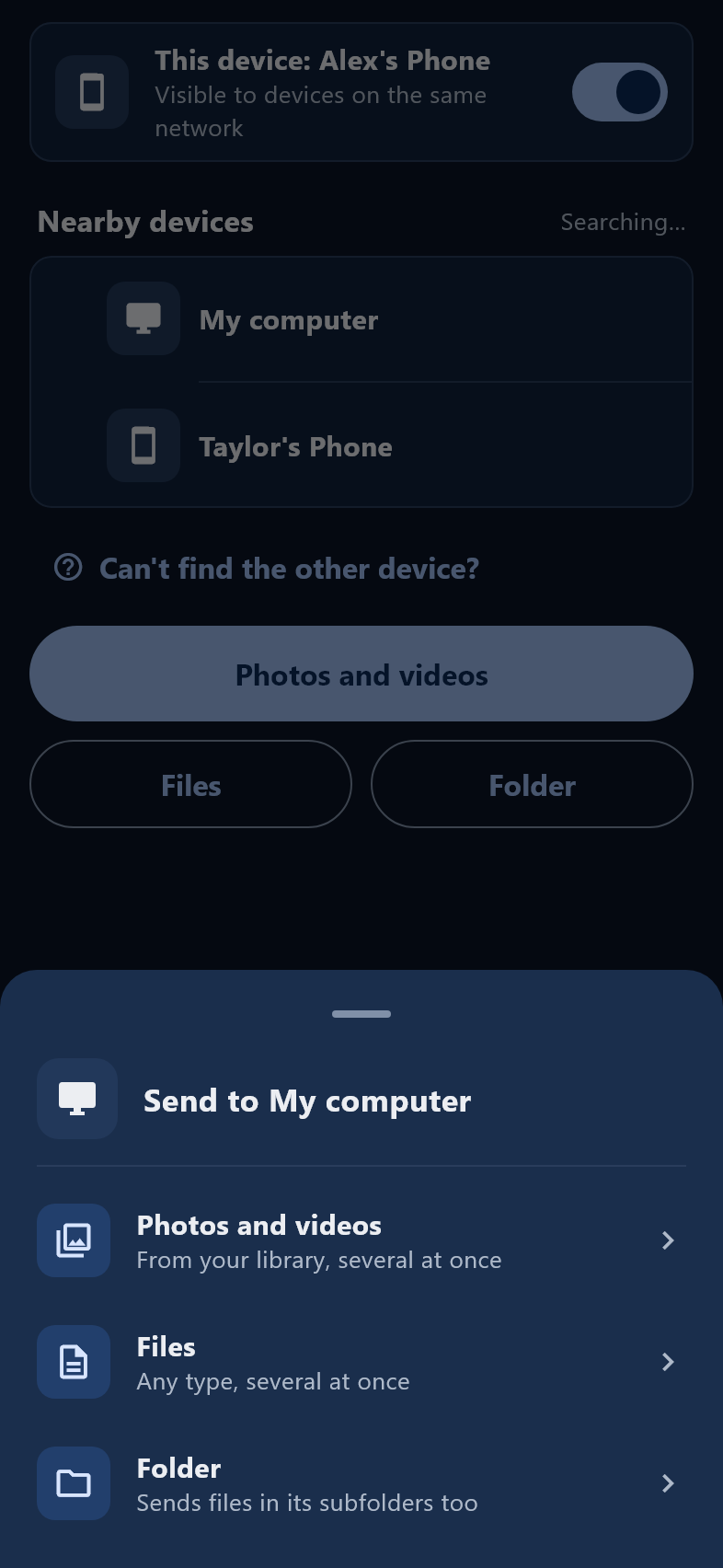
2Choose what to send: photos and videos, files, or a folder. 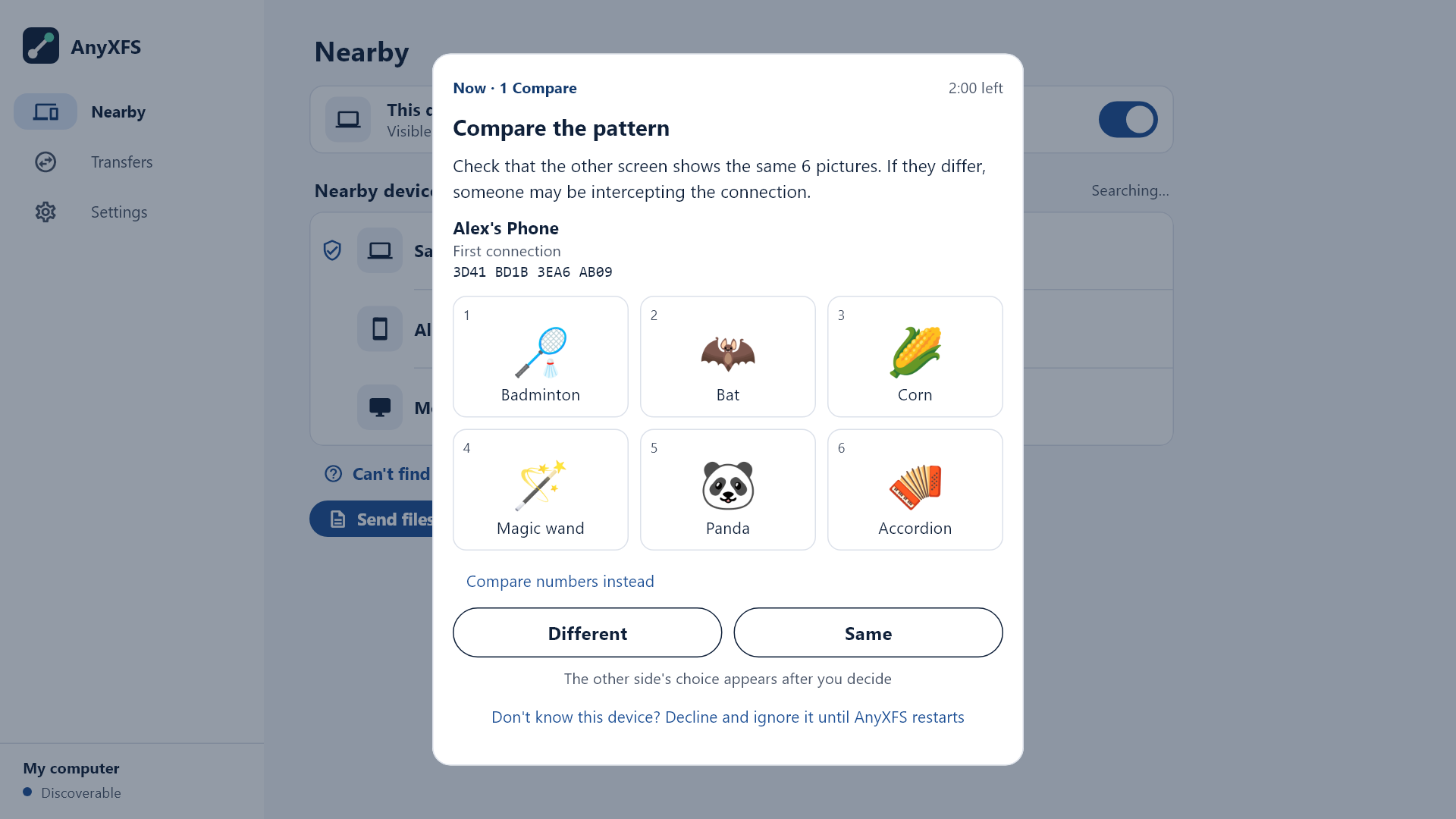
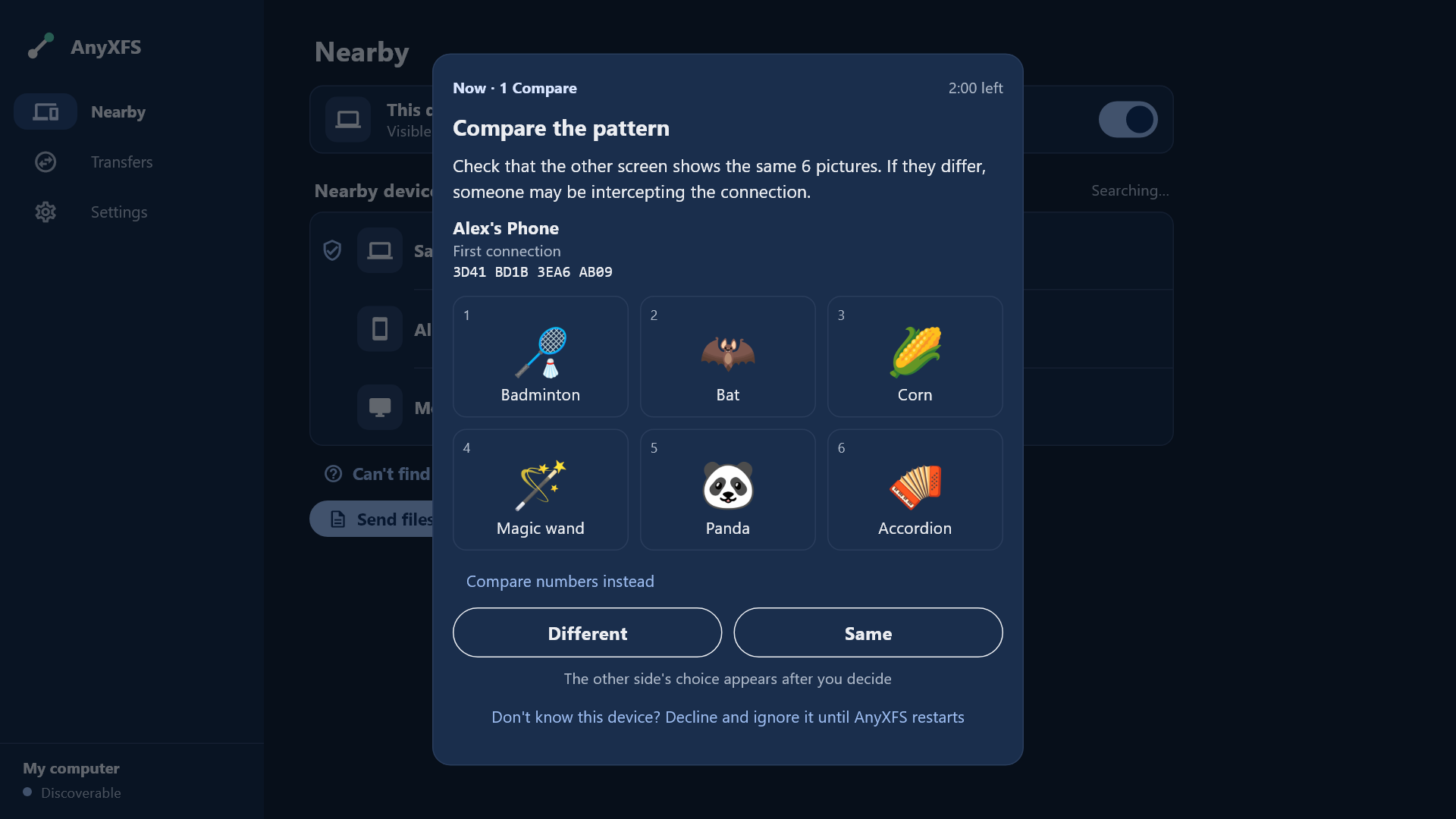
3The first time, both devices show the same set of pictures. If they match, tap “Same” on both. 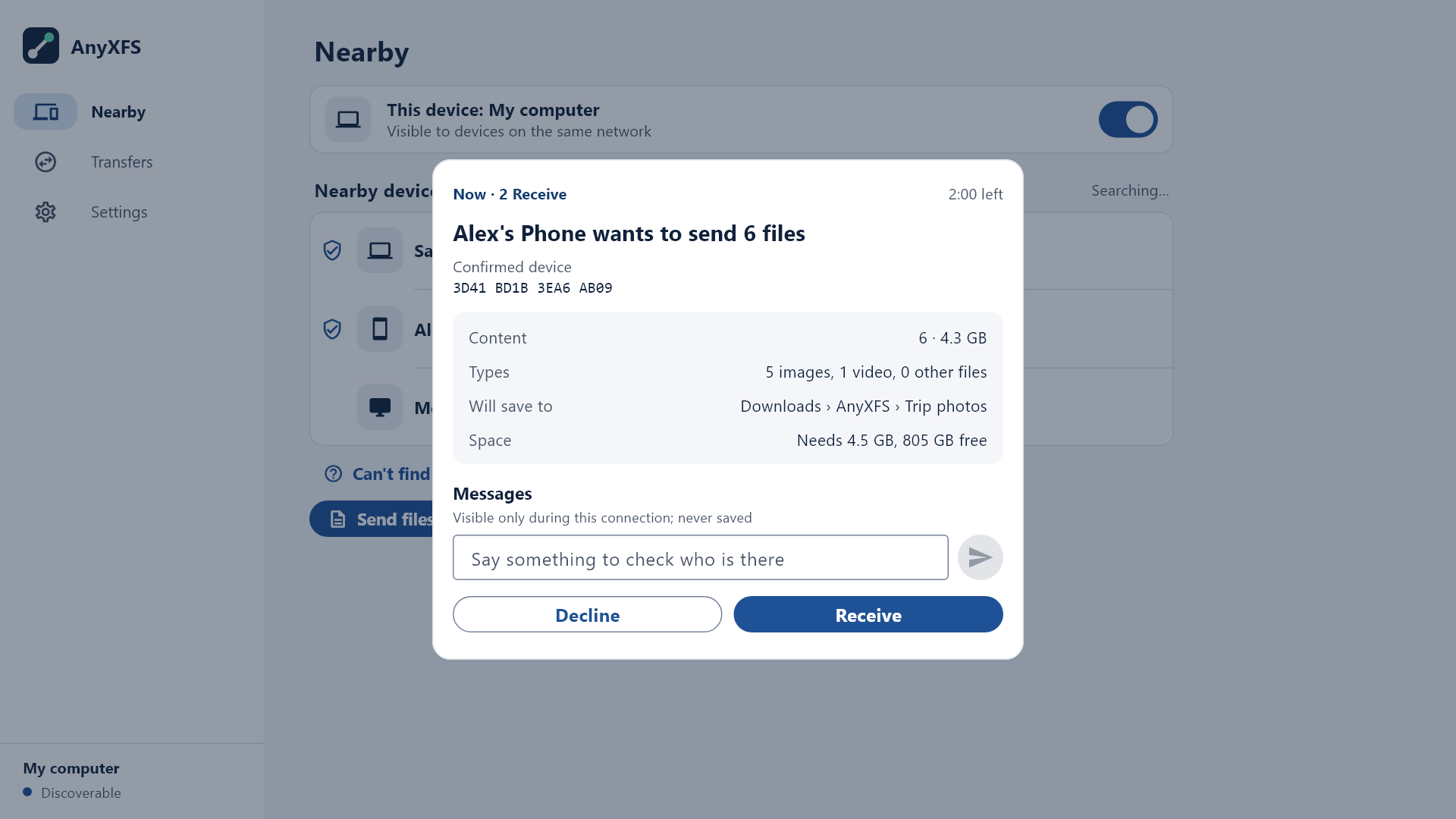
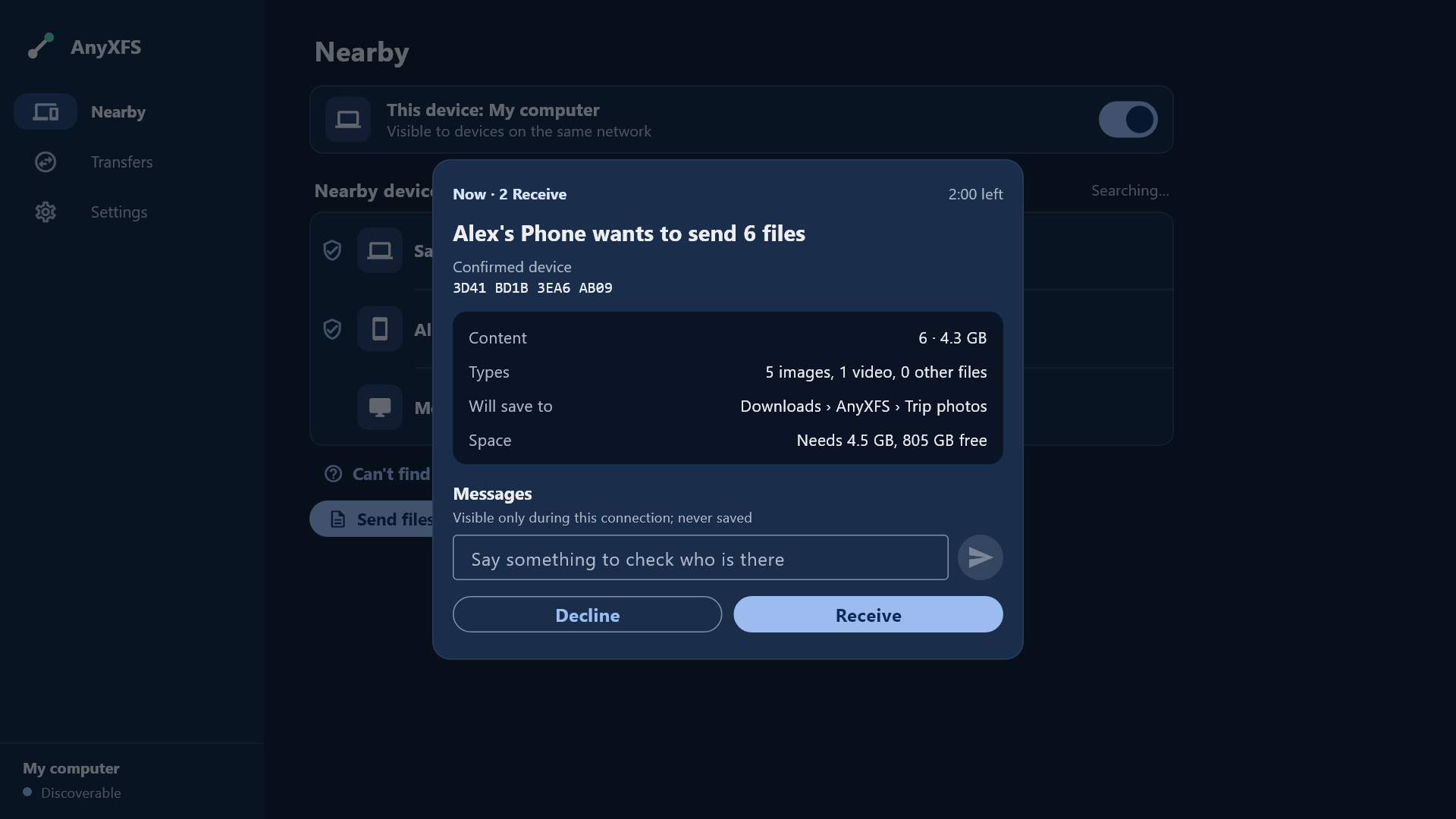
4On the computer, check who is sending, which files and where they will be saved, then click “Receive”. 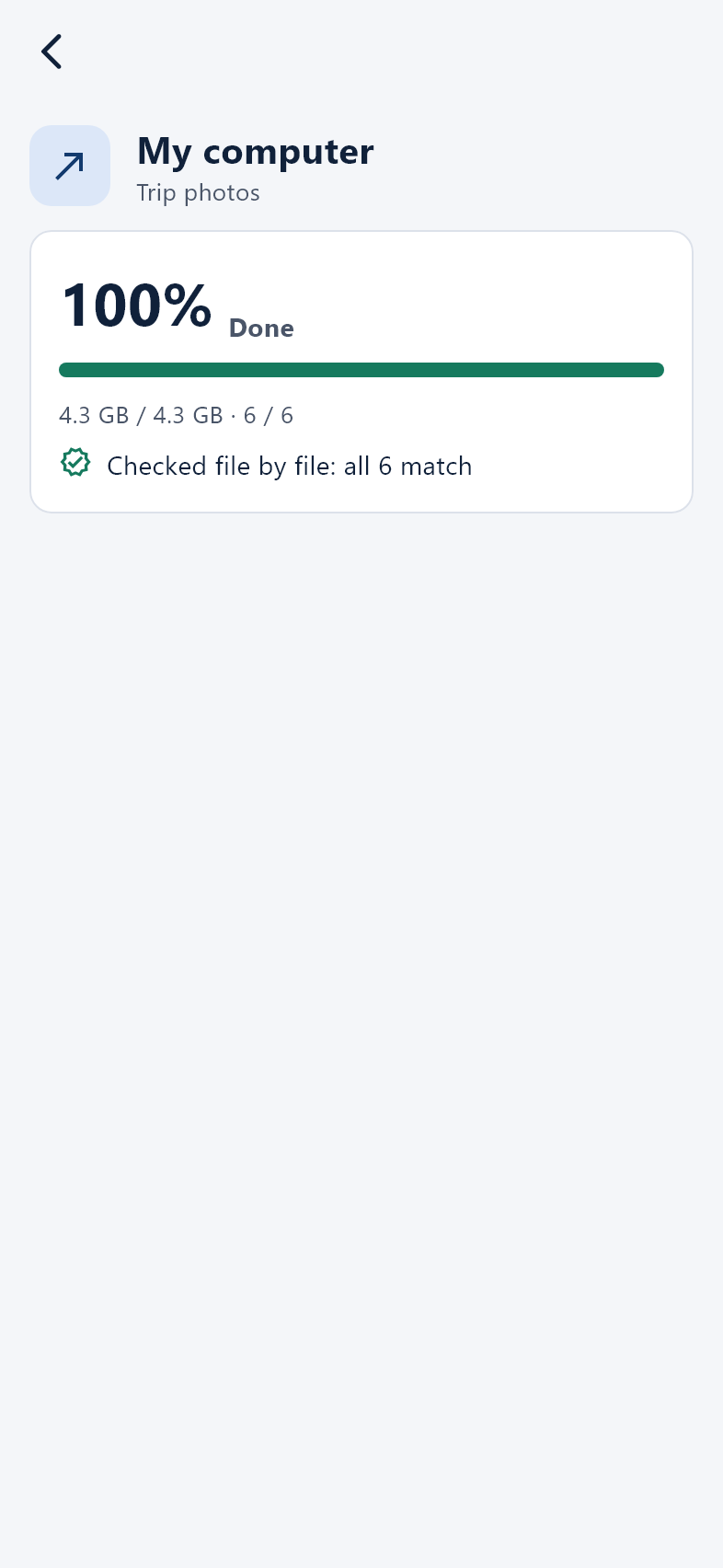
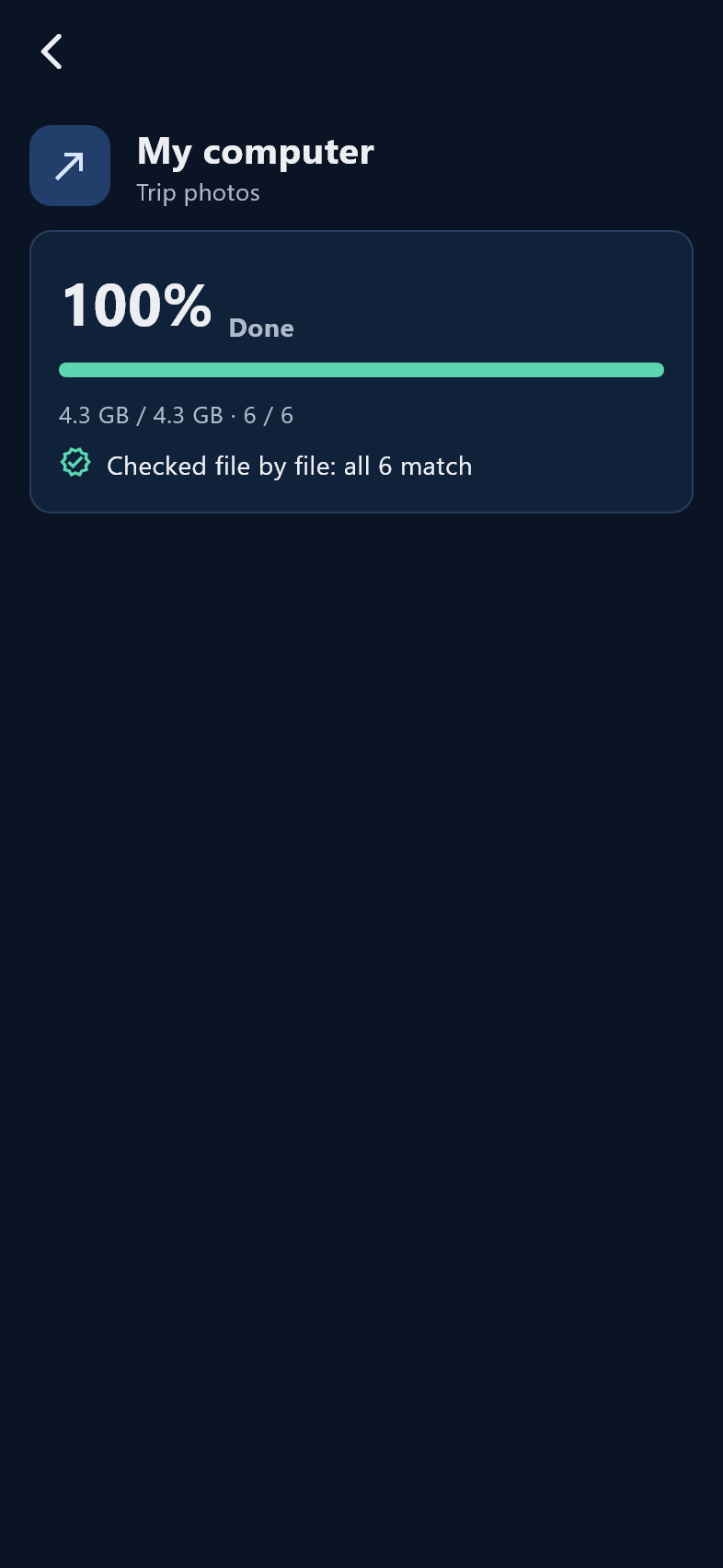
5When it finishes, you see “Done”, with every file verified.
Phone → phone · same network
1Connect both phones to the same Wi-Fi and open AnyXFS on both. Under “Nearby”, tap the other phone. 2Choose what to send: photos and videos, files, or a folder. 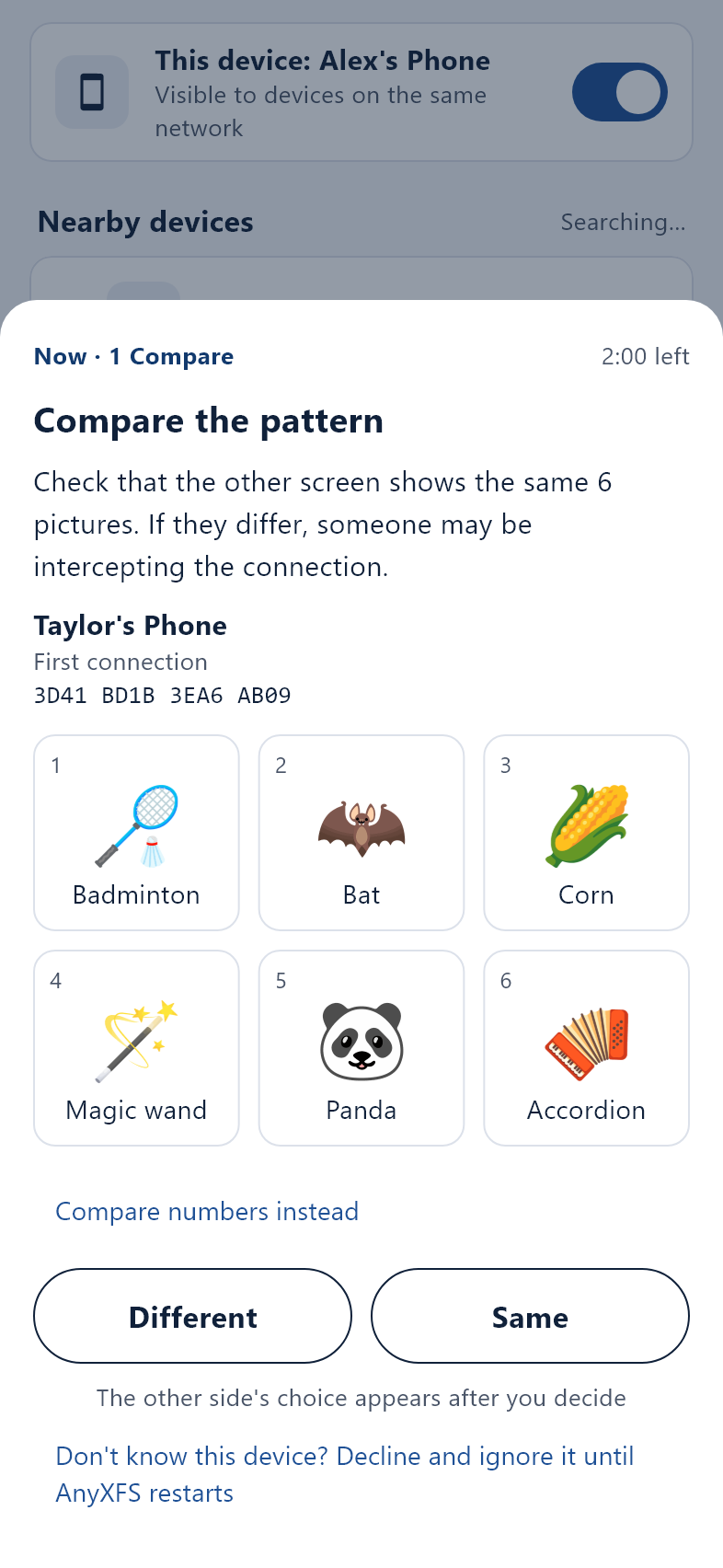
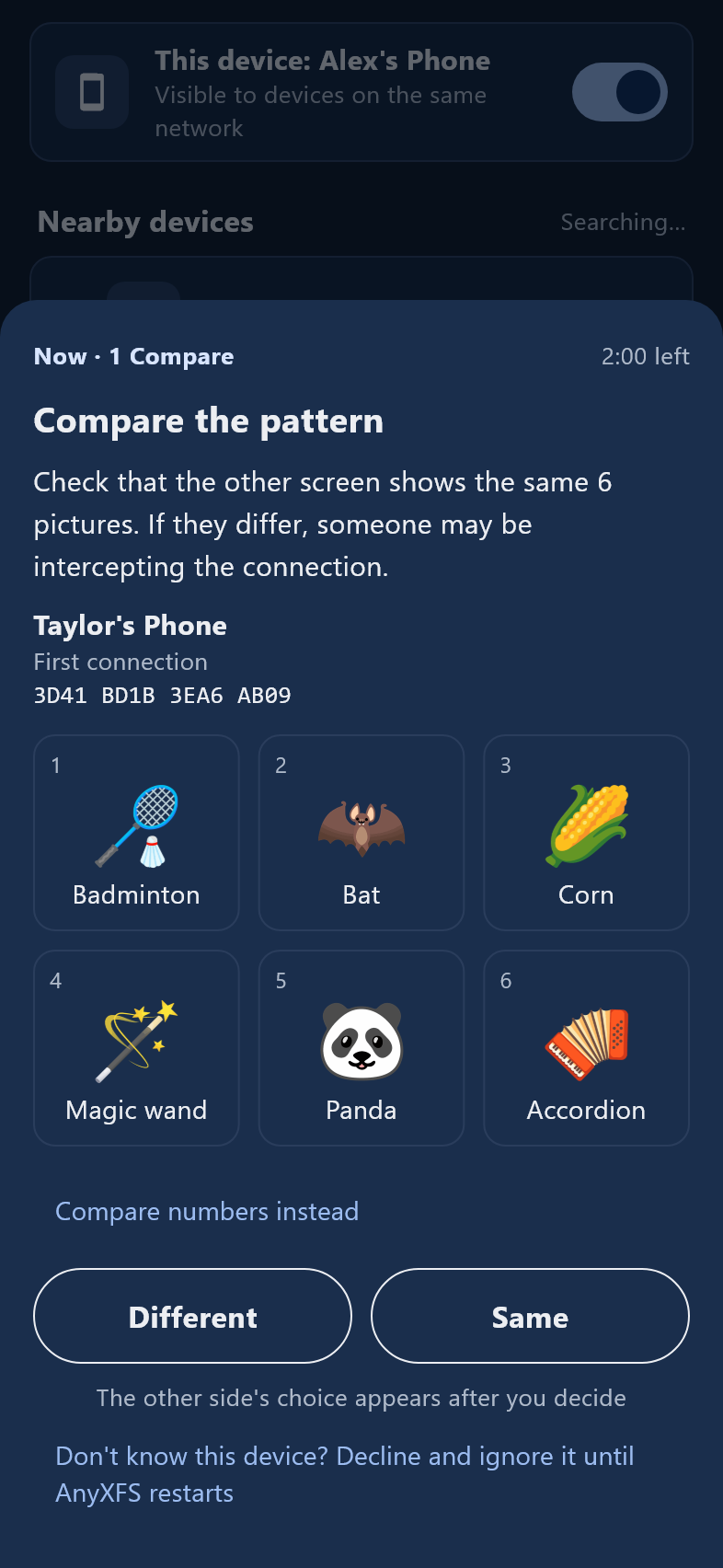
3The first time, both phones show the same set of pictures. If they match, tap “Same” on both. 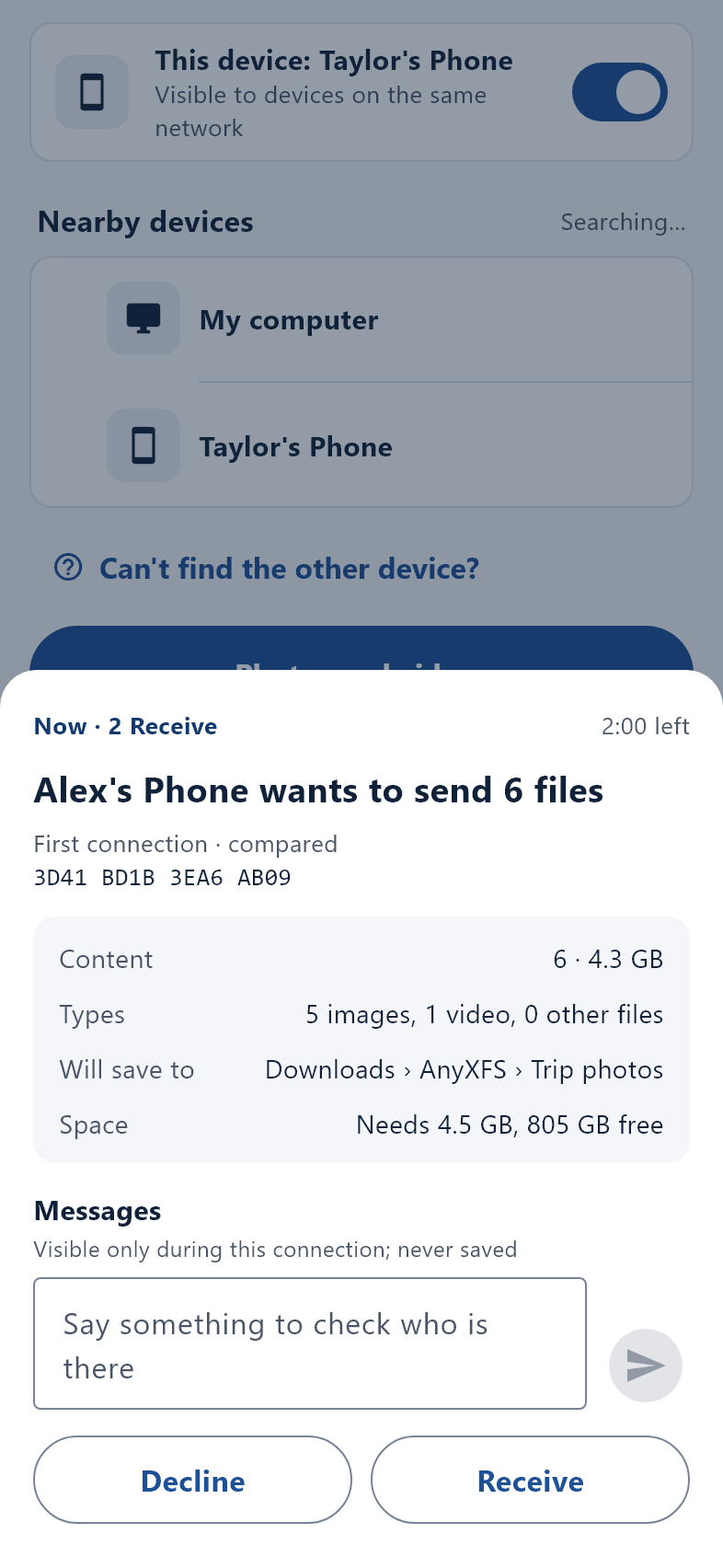
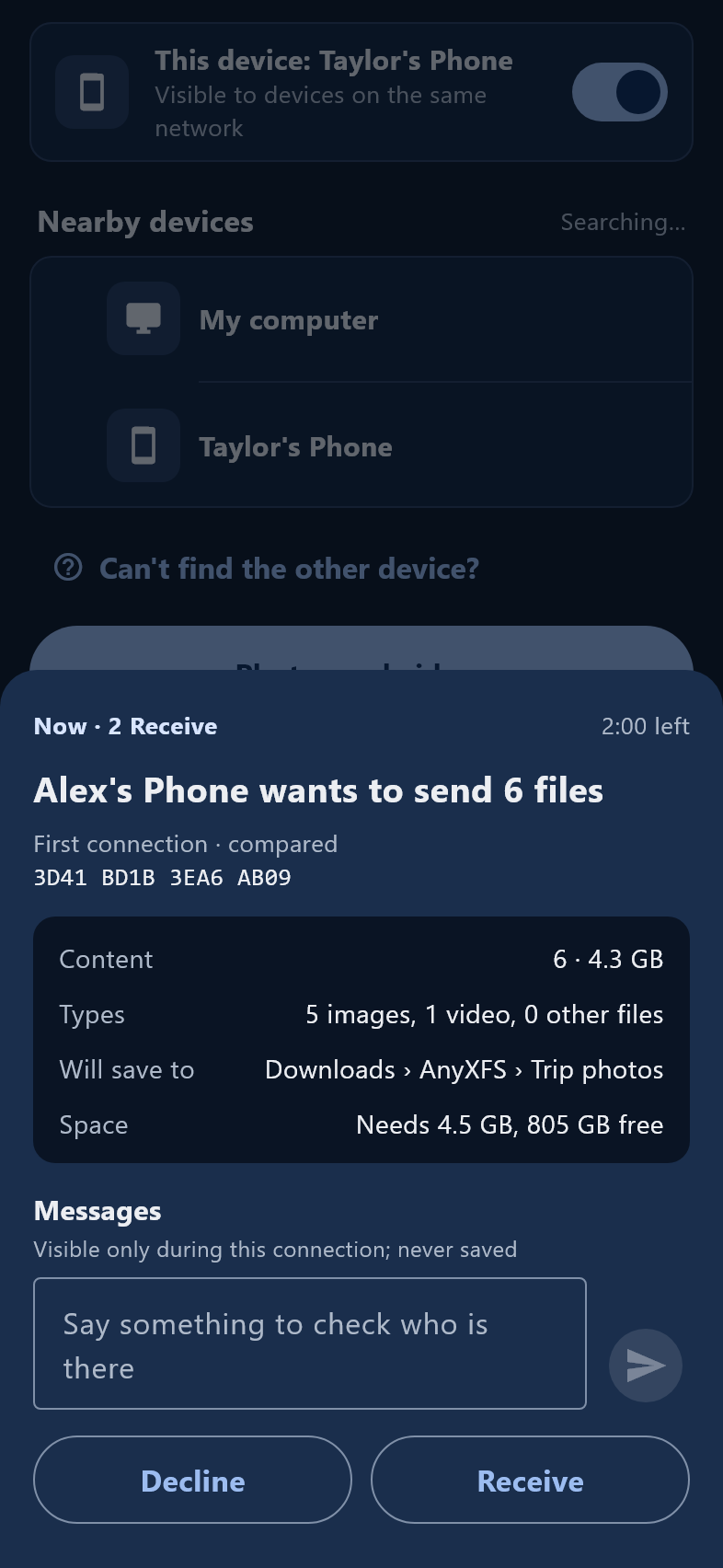
4On the other phone, check who is sending and which files, then tap “Receive”. 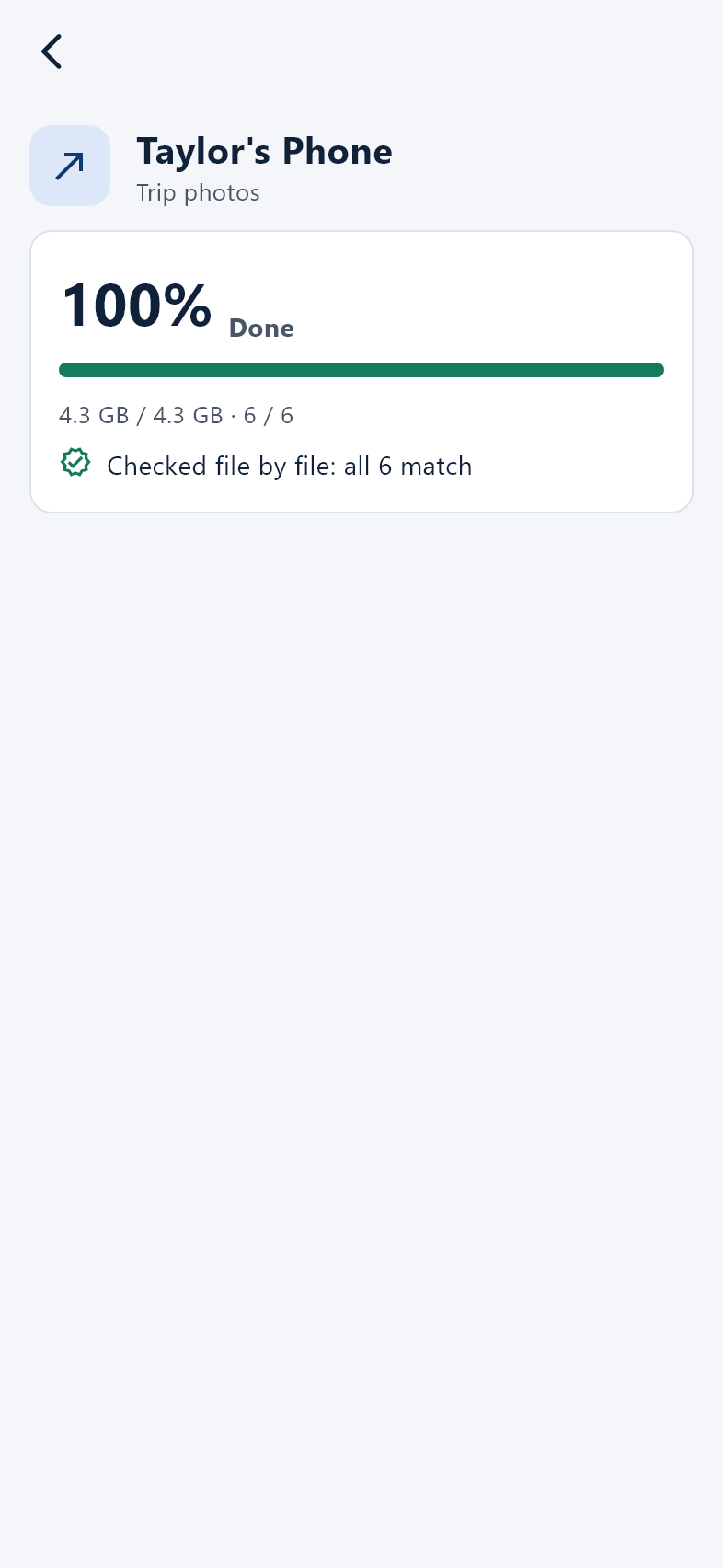
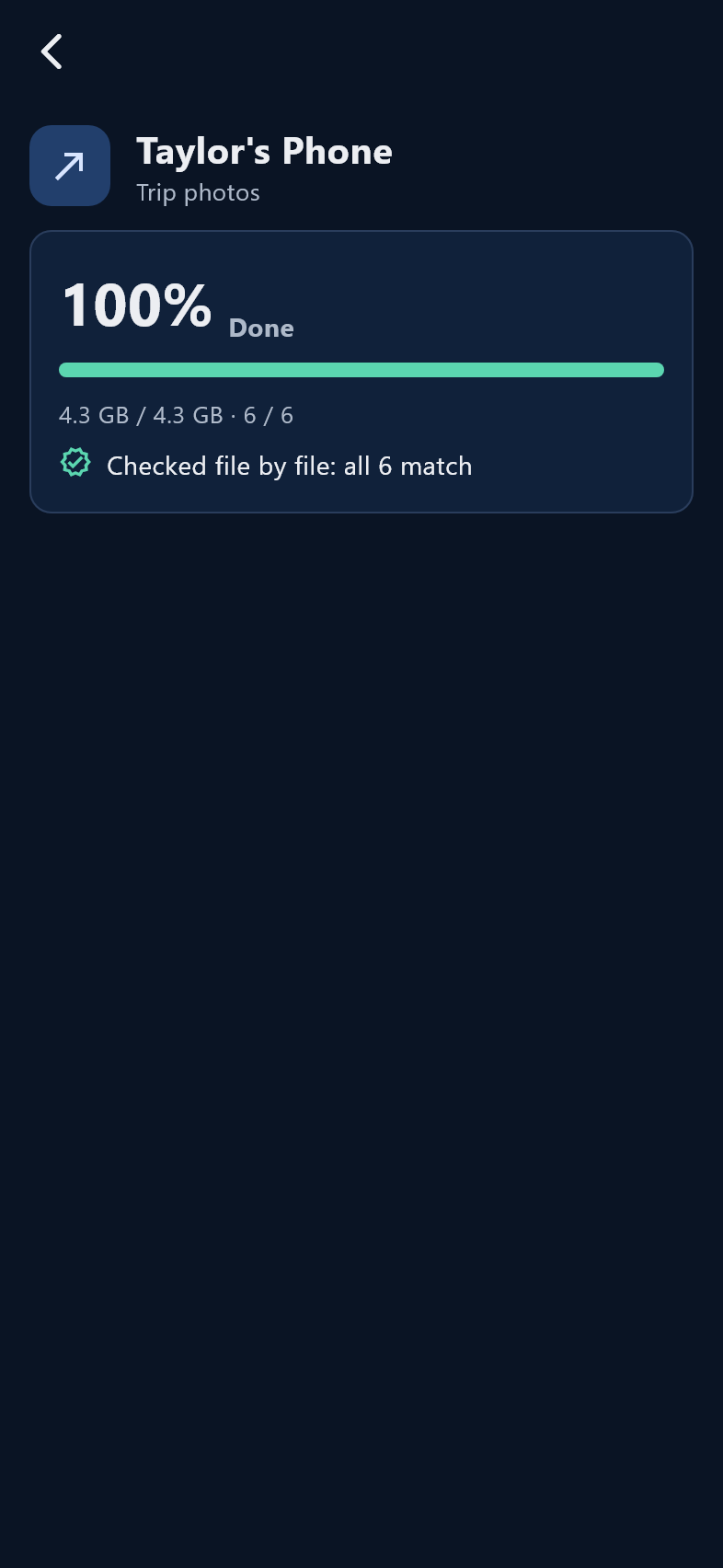
5When it finishes, you see “Done”, with every file verified.
Phone → computer · different networks
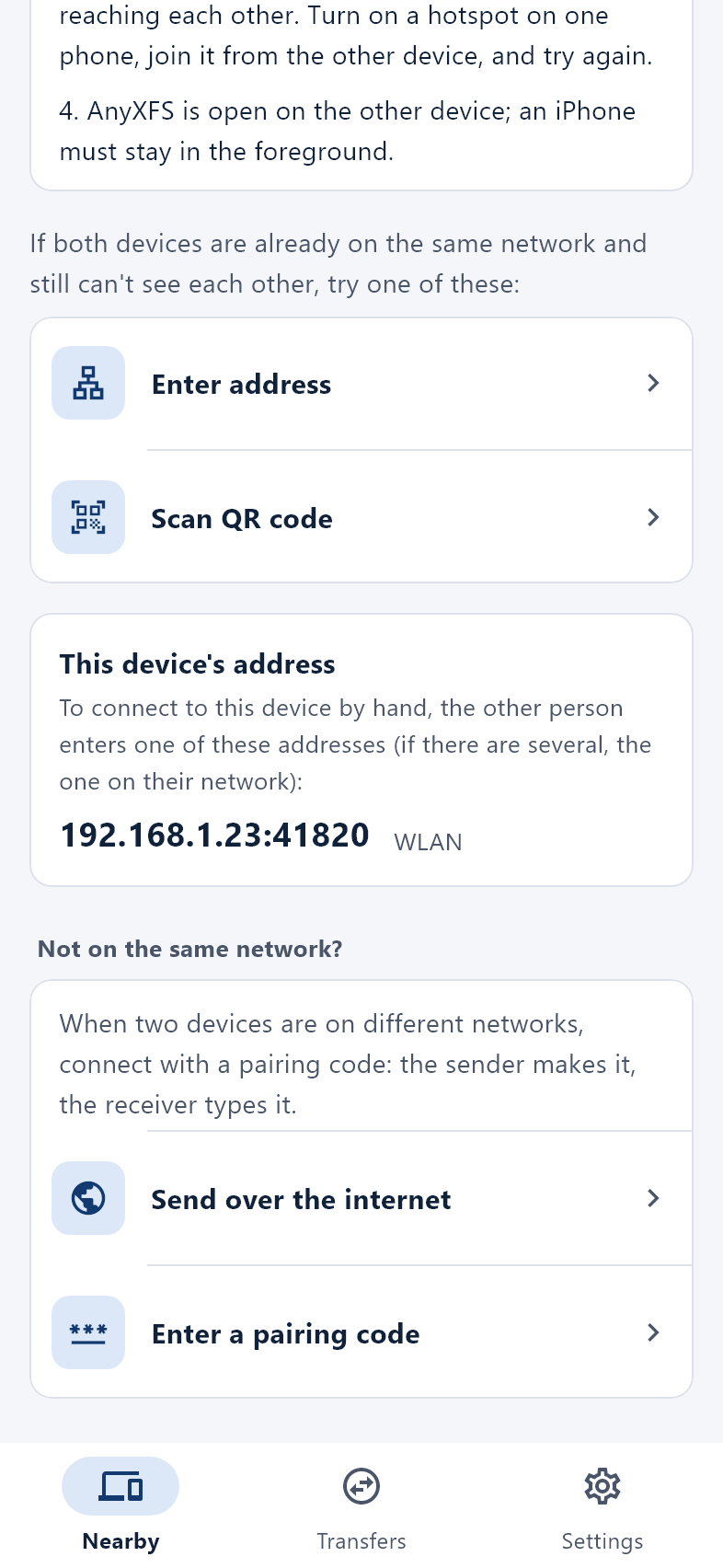
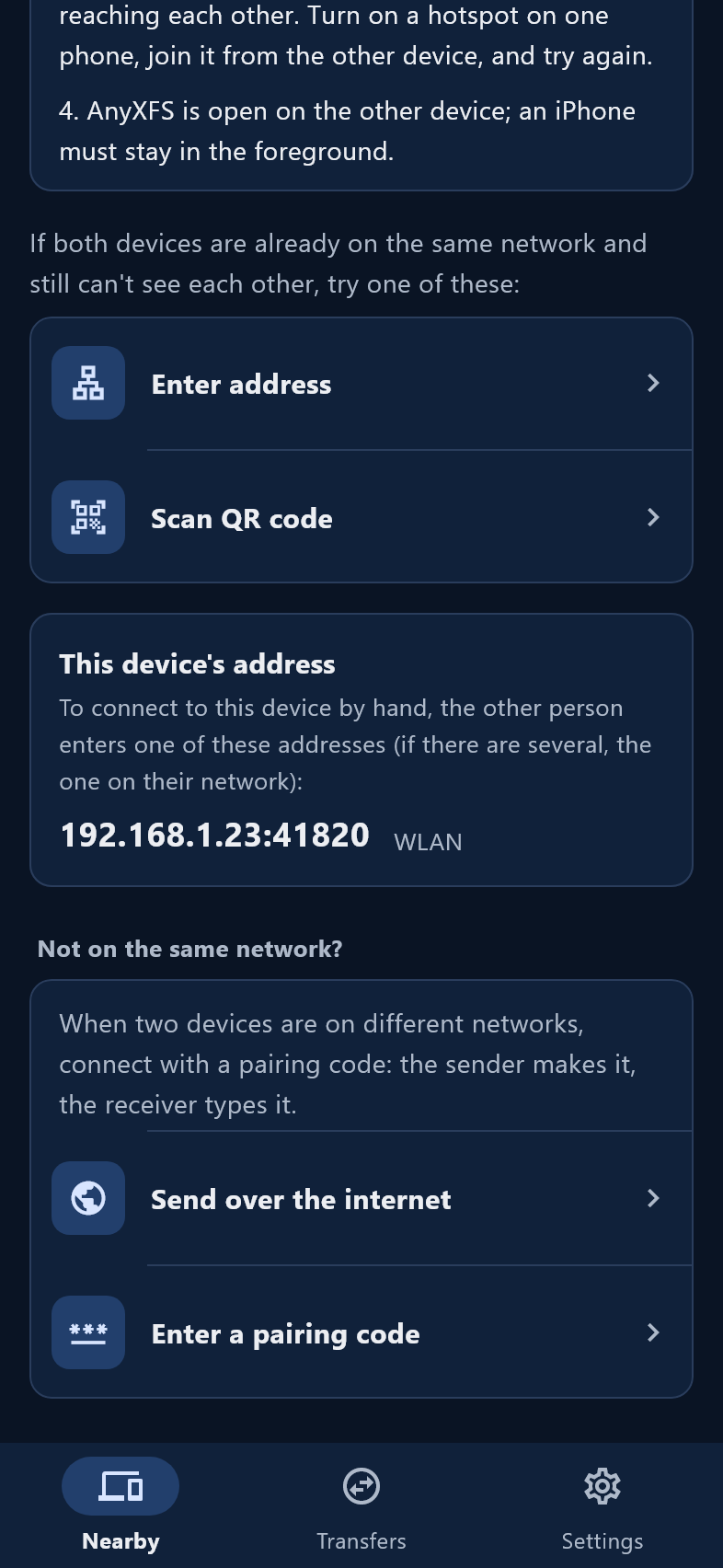
1On the phone, open “Can't find the other device?” under “Nearby” and, under “Not on the same network?”, choose “Send over the internet”. 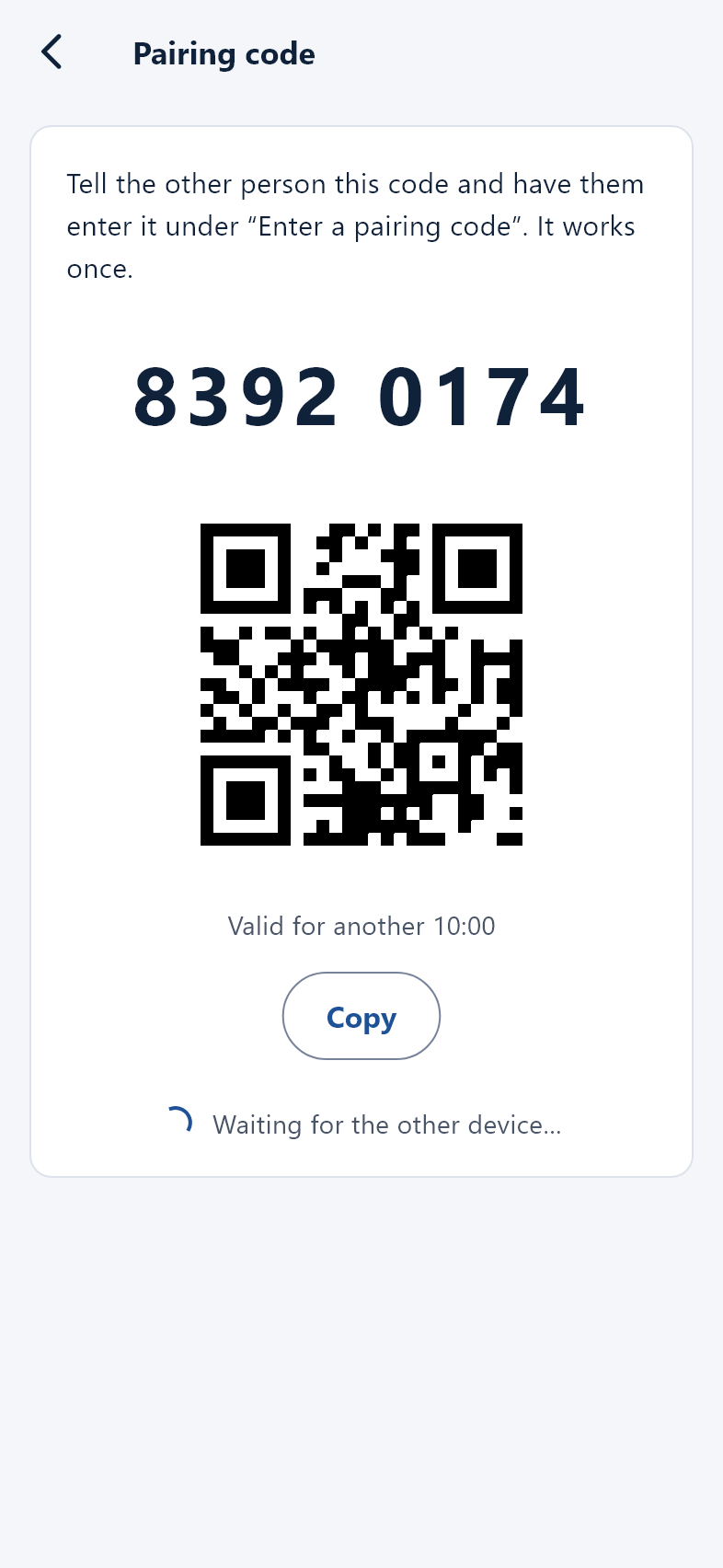
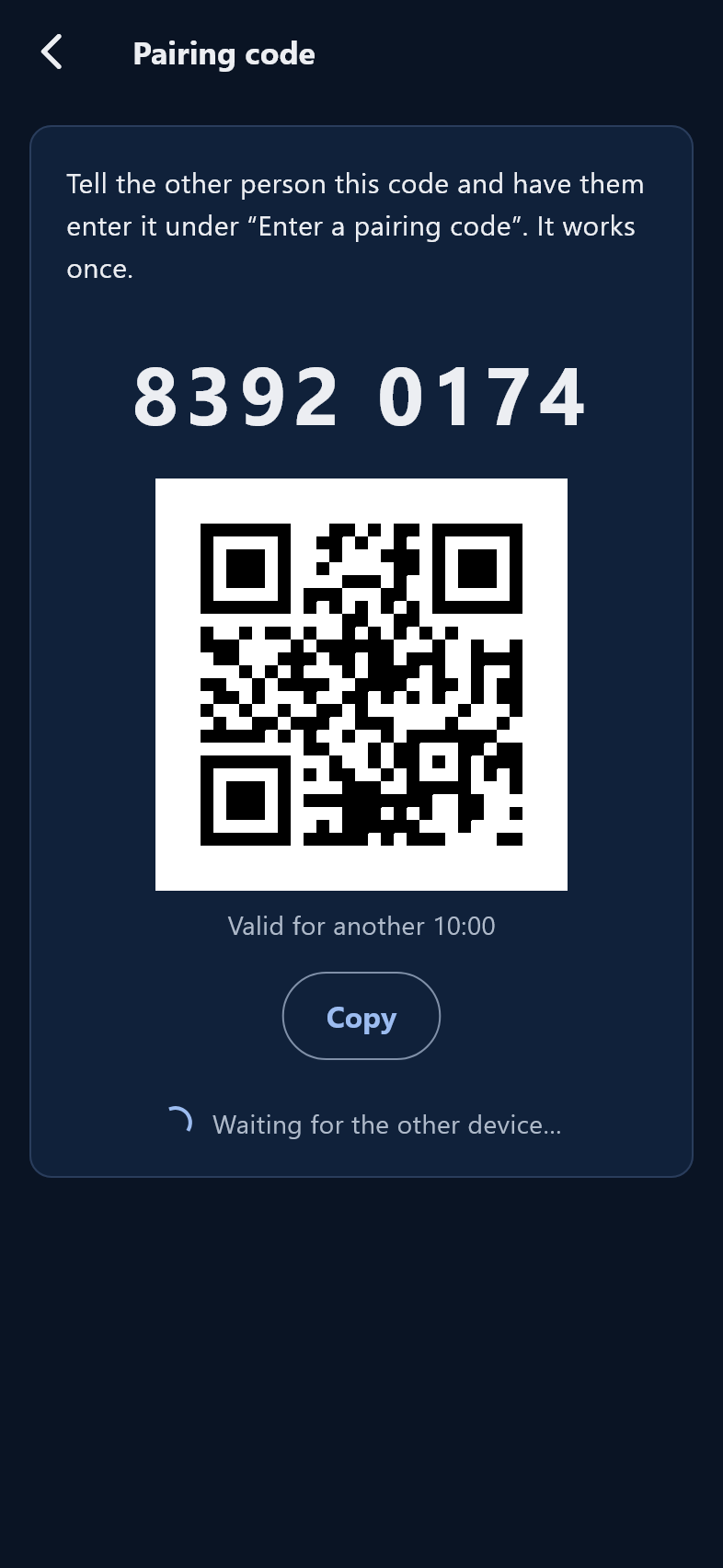
2After you pick the files, you get an 8-digit pairing code and a QR code, valid for 10 minutes. Tell the other side the code. 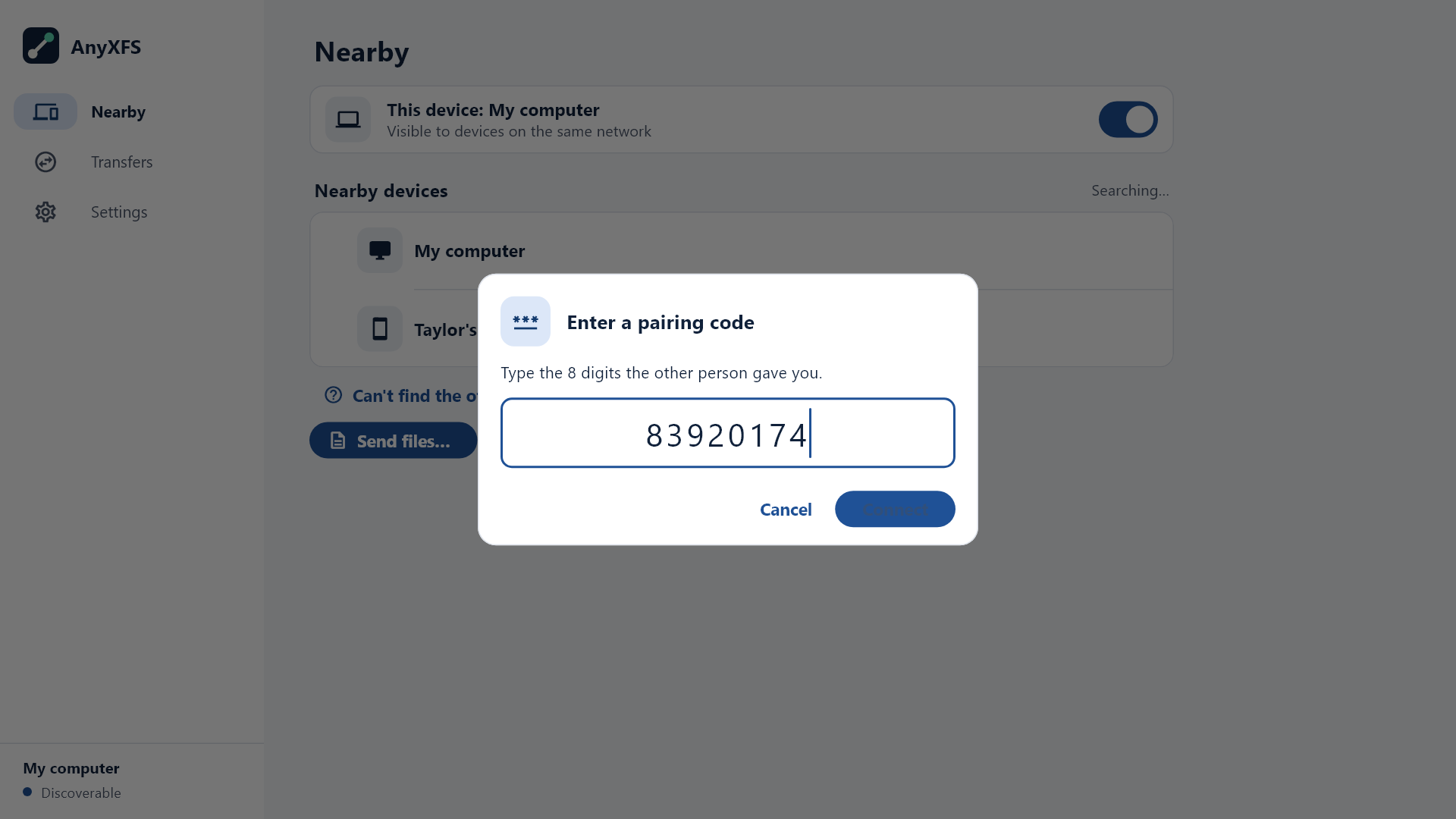
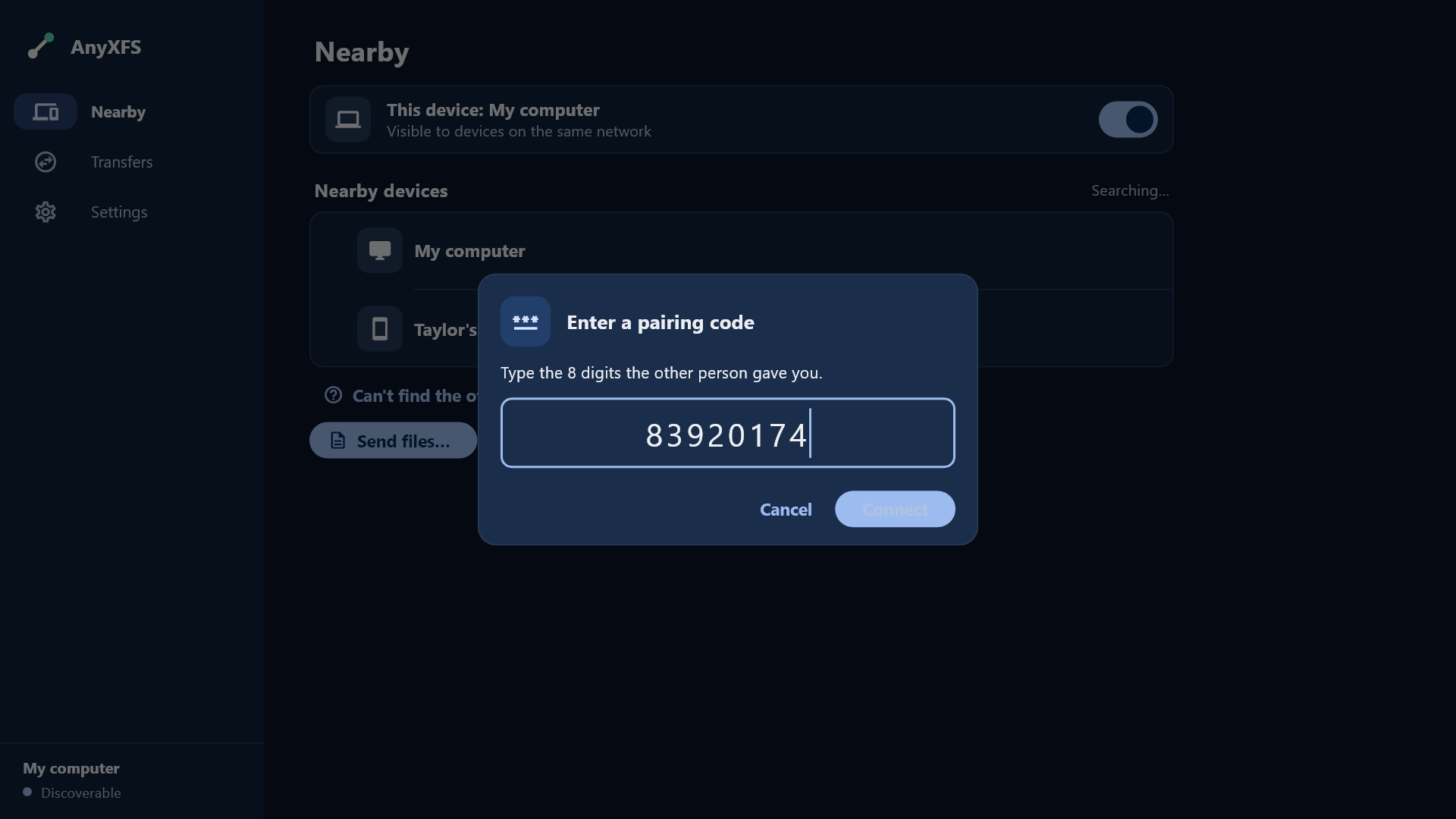
3On the computer, open “Can't find the other device?” too, choose “Enter a pairing code”, type it in and click “Connect”. 4Both devices show the same set of pictures. If they match, choose “Same” on both. 5On the computer, check the files and click “Receive”. 6When it finishes, you see “Done”. If a direct connection is not possible, AnyXFS goes through a relay automatically; the content stays end-to-end encrypted.
Phone → phone · different networks
1On the sending phone, open “Can't find the other device?” under “Nearby” and, under “Not on the same network?”, choose “Send over the internet”. 2After you pick the files, you get an 8-digit pairing code and a QR code, valid for 10 minutes. Tell the other side the code. 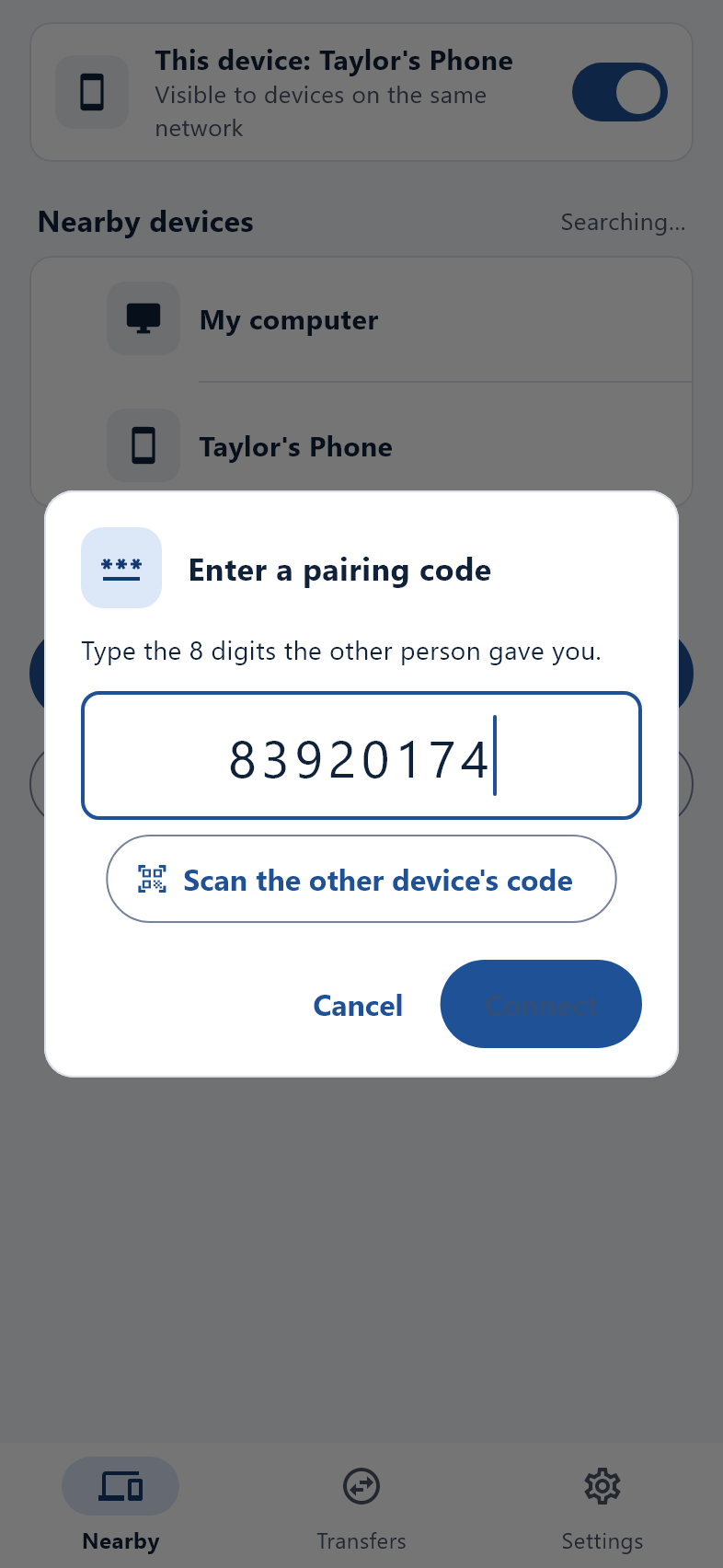
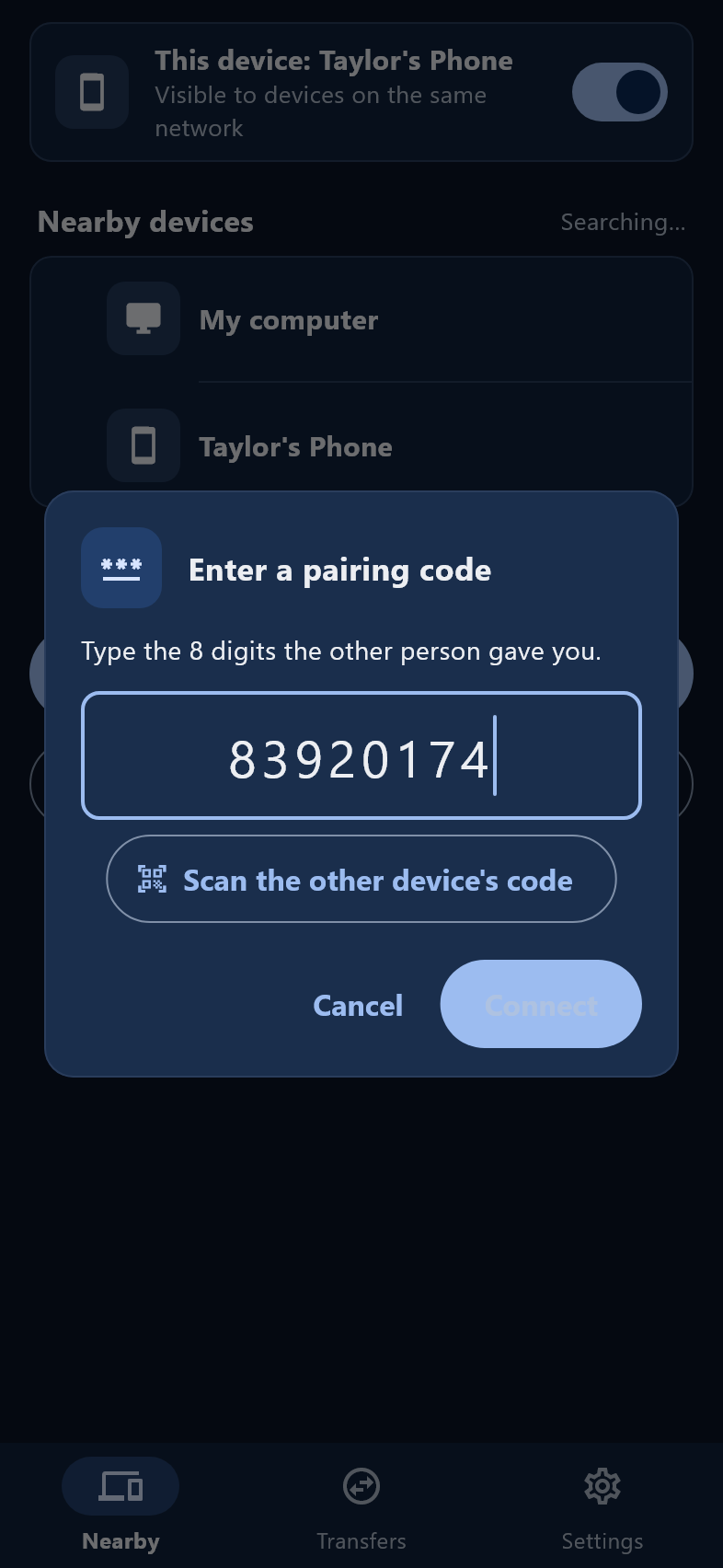
3On the other phone, open “Can't find the other device?”, choose “Enter a pairing code” and type it in, or tap “Scan the other device's code”. 4Both phones show the same set of pictures. If they match, tap “Same” on both. 5On the other phone, check the files and tap “Receive”. 6When it finishes, you see “Done”. If a direct connection is not possible, AnyXFS goes through a relay automatically; the content stays end-to-end encrypted.
Frequently asked questions
Answers to common questions are below. If you still have a question, email us at support@anyxfs.com.
Do both devices need the app?
Yes. Install and open AnyXFS on both the sender and receiver. This website provides information and help; it does not read or transfer your files. Check availability.
How do I send my first file?
- Connect both devices to the same local network and open AnyXFS.
- Select the other device from the nearby list, then choose your files.
- On the first connection, compare the pictures on both screens. Stop if they do not match.
- On the receiving device, review the file details and accept the transfer.
Why can't I find the other device?
Keep both apps open and enable discoverability. Guest Wi-Fi or network isolation can prevent devices from finding each other. Windows Firewall also needs to allow AnyXFS to communicate.
Try the app's manual address or QR connection options. Do not turn off your entire firewall or confirm an unfamiliar device.
Where do received files go?
Check the receiving location in Settings. The default folder is named AnyXFS, and Windows lets you change it. Follow your current settings and the app's controls for opening received files.
What if a transfer stops halfway?
Restore the network and keep both apps running so AnyXFS can try to resume. If the transfer is interrupted and offers Continue, select it. A transfer you paused yourself needs to be continued manually.
Clearing the resume cache, resetting identity or uninstalling may prevent unfinished transfers from resuming. If the source file has changed, you may need to start a new transfer.
Can I close the window or switch apps?
On Windows, closing the window can leave AnyXFS running in the notification area; quitting stops it. Android uses a foreground service for background transfers, but system, battery and duration limits still apply. Keep the app in the foreground for long transfers when possible.
What about different networks?
Yes. On the sending device, open “Can't find the other device?” and choose “Send over the internet”; after you pick the files you get an 8-digit pairing code. On the receiving device, choose “Enter a pairing code” and type it in, or scan it. Once both sides show the same pictures, the transfer starts. AnyXFS tries a direct connection first and falls back to a relay server only when that fails; the relay forwards encrypted data only. A code is valid for 10 minutes and works once.
Is AnyXFS open source?
We embrace open source, and we also guard against misuse, especially malicious misuse. The signalling server used for pairing across networks is open source on GitHub (Apache-2.0), so anyone can check what it receives, what it keeps and how the relay is configured. The apps are not: for a file-transfer app, modified copies that carry viruses or other malicious code and pass themselves off as AnyXFS are a real risk, and we would rather not make such copies easy to build. AnyXFS is published only in the official app stores; please install it from the ones listed on the download page.
How do I report a problem?
Email support@anyxfs.com. Prepare the app version, both operating systems, whether the devices share a network, steps to reproduce and the error message. Hide private filenames in screenshots. Do not send original files, pairing codes or identity keys.